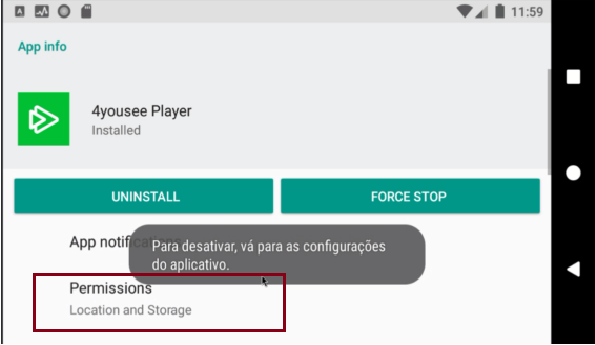
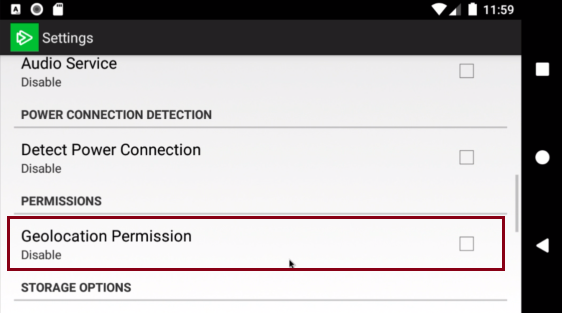
To ensure the proper functioning of location-dependent features on the Player Android, it is essential that the geolocation service is enabled on the device.
Attention: The automatic permission request occurs exclusively during the first access after installation. If the Player is already configured and geolocation is not working, activation must be done manually through the Android settings.
Geolocation Activation (Initial Setup)
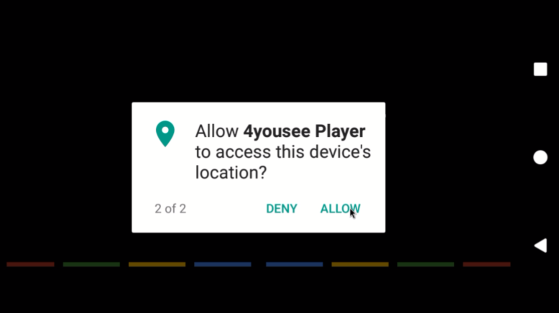
When opening the Player Android for the first time after installation, the operating system will request permission to access the device's location.
Start the configuration: Open the Player Android right after installation.
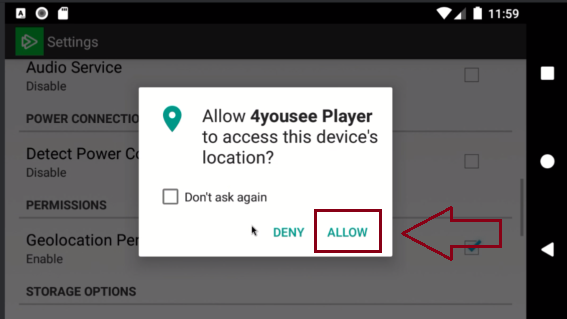
View permission message: Wait for the system window asking for location access.
Grant permission: Click on the ALLOW option. This action ensures that the player correctly executes geolocation-based content.
Manual Activation (For Players already installed)
If the Player is already in use and permission was not previously granted, the automatic message will not appear again. In these cases, follow the manual procedure below:
Access Android Settings: Exit the Player app and open the device's system settings.
Locate Applications: Navigate to the list of installed apps and select 4yousee.
Access Permissions: Click on the Permissions option.
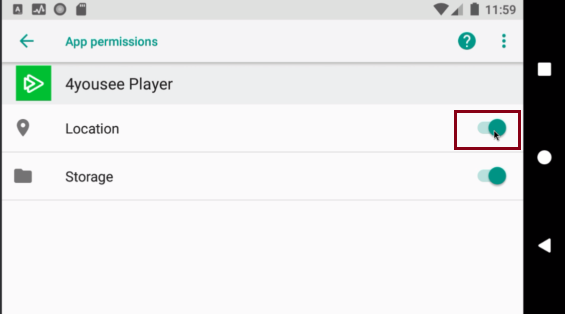
Enable Location: Locate the Location item and change the status to Allow.
Disabling Geolocation in the Player
To stop the Player's access to geolocation, you must disable the internal setting of the application.
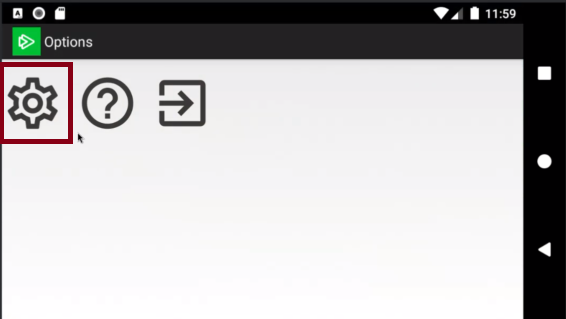
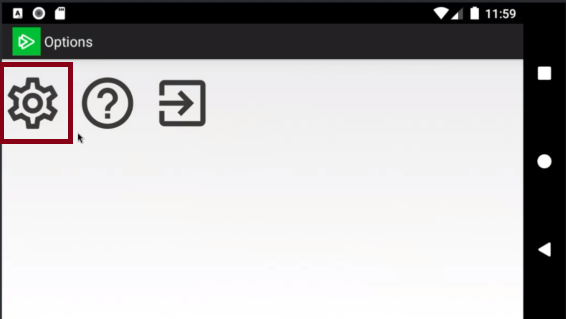
Access Player Settings: Navigate to the internal settings menu of the Player app.
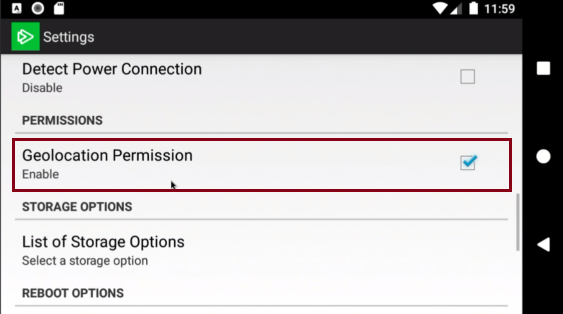
Locate the Geolocation option: Scroll through the list until you find the corresponding item.
Disable the feature: Click to change the status. The system will automatically redirect you to the Android settings to complete the revocation.
Revoking Permission in the Android System
After disabling it in the Player, finish the process at the operating system level.
Access Permissions: On the app settings screen (where you were redirected), click on Permissions.
Disable Location: Change the Location status to disabled or denied.
Return to the App: Use the back command to return to the Player interface.